Record Your Game
A simple guide to recording gameplay footage using OBS Studio
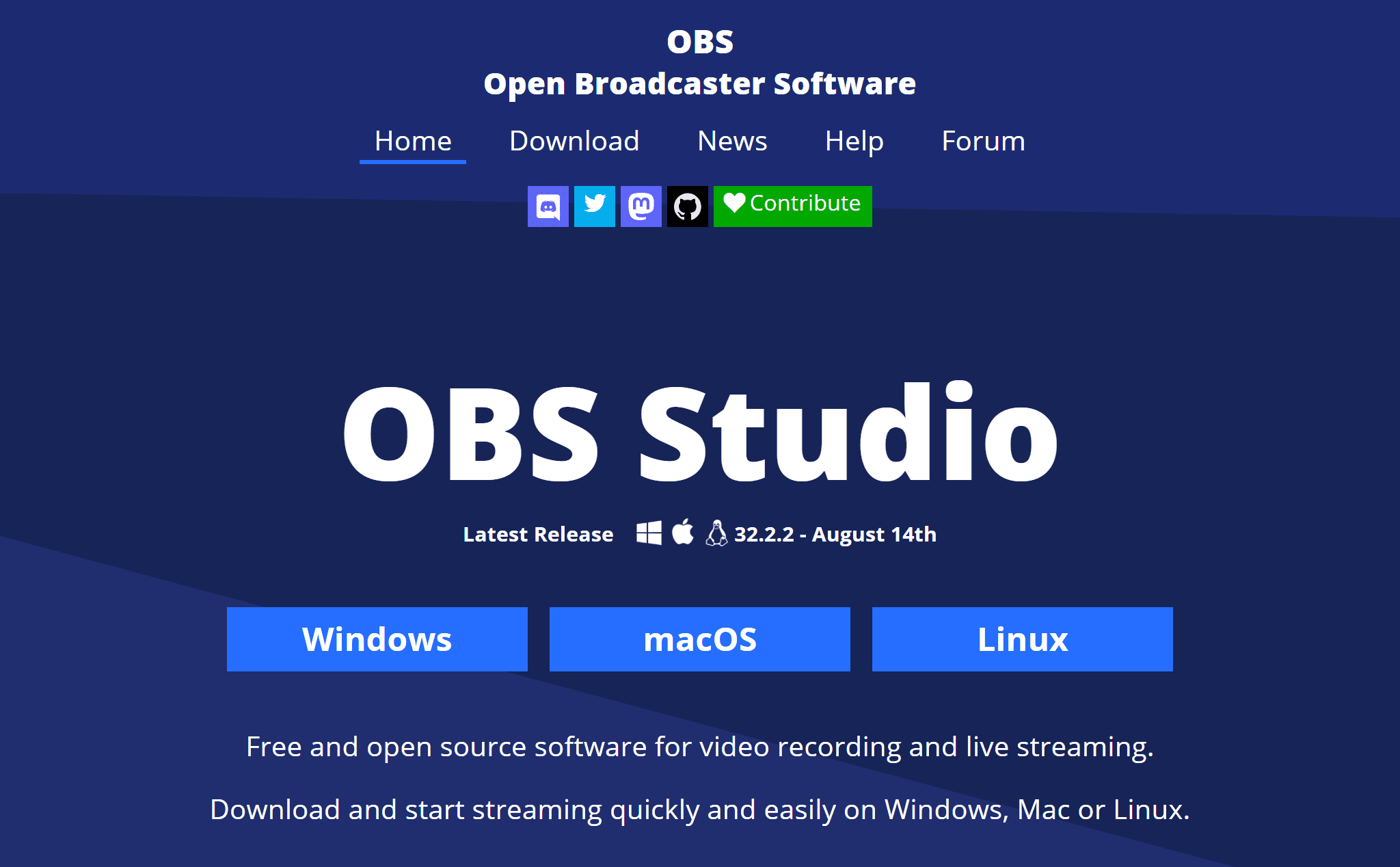
Let's look at a simple way to record video of your game. First, we need to download a recording program - the easiest one to work with is OBS.
You can download it here: obsproject.com
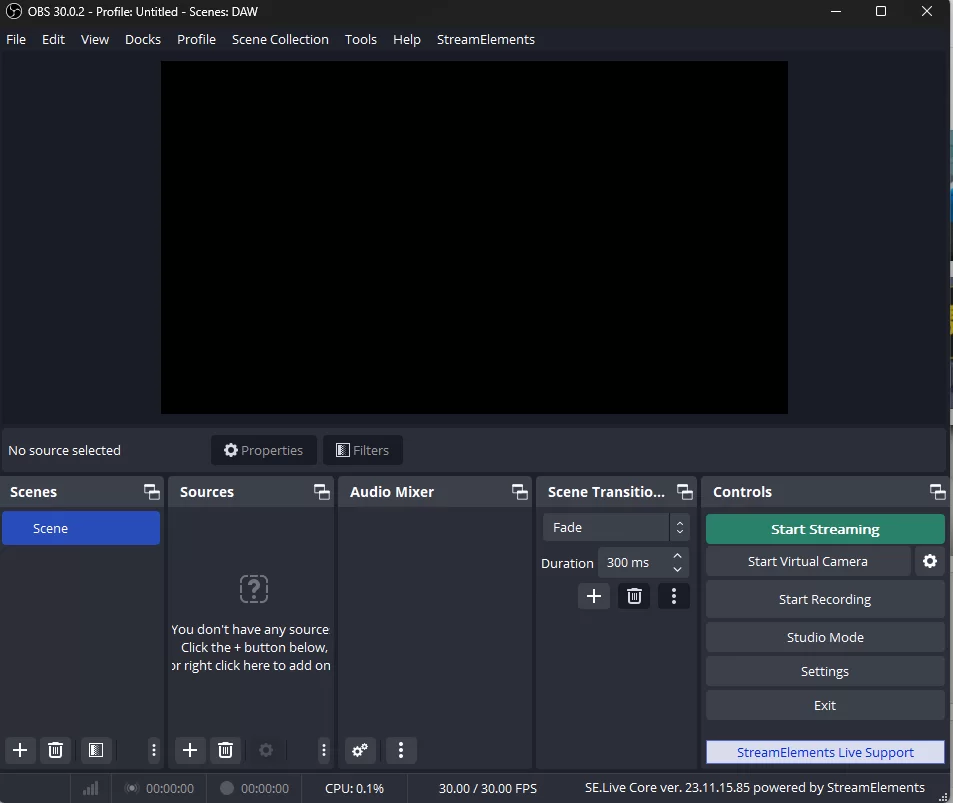
After you download and install OBS, you will see an empty scene.
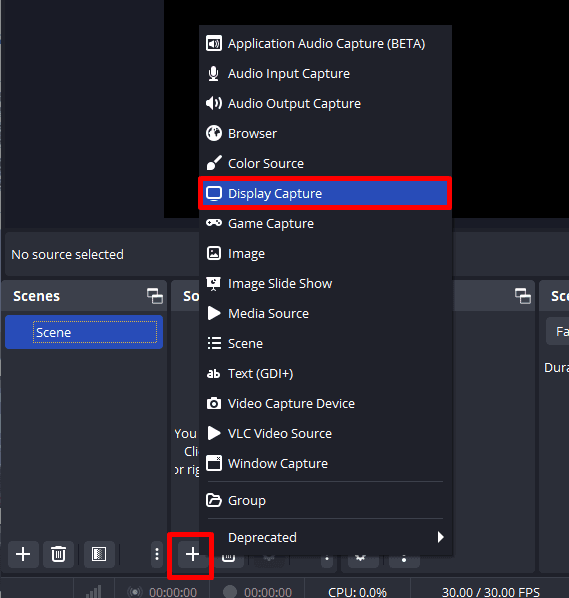
Let's add a Display Capture!
Click the "+" button under Sources and select "Display Capture" to capture your entire screen.
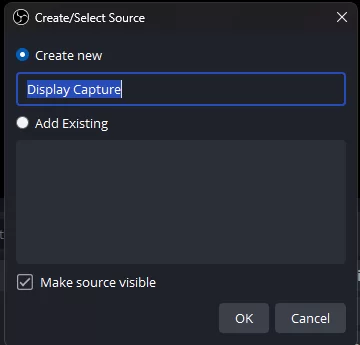
OBS will ask you to name the source.
The default name is fine - just click "OK".
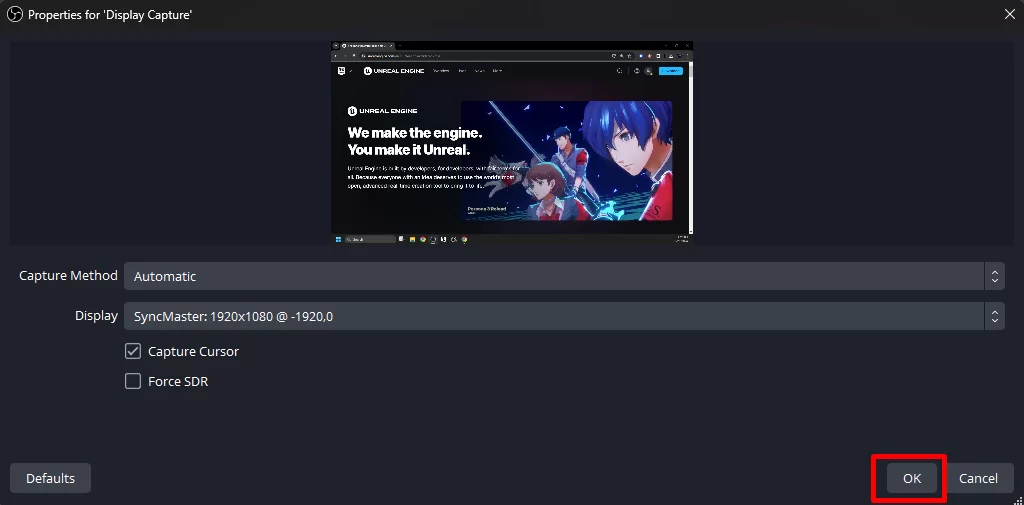
Next you will see the properties for the source, with a live preview of the screen it is about to capture.
Nothing needs changing here - click "OK" again.
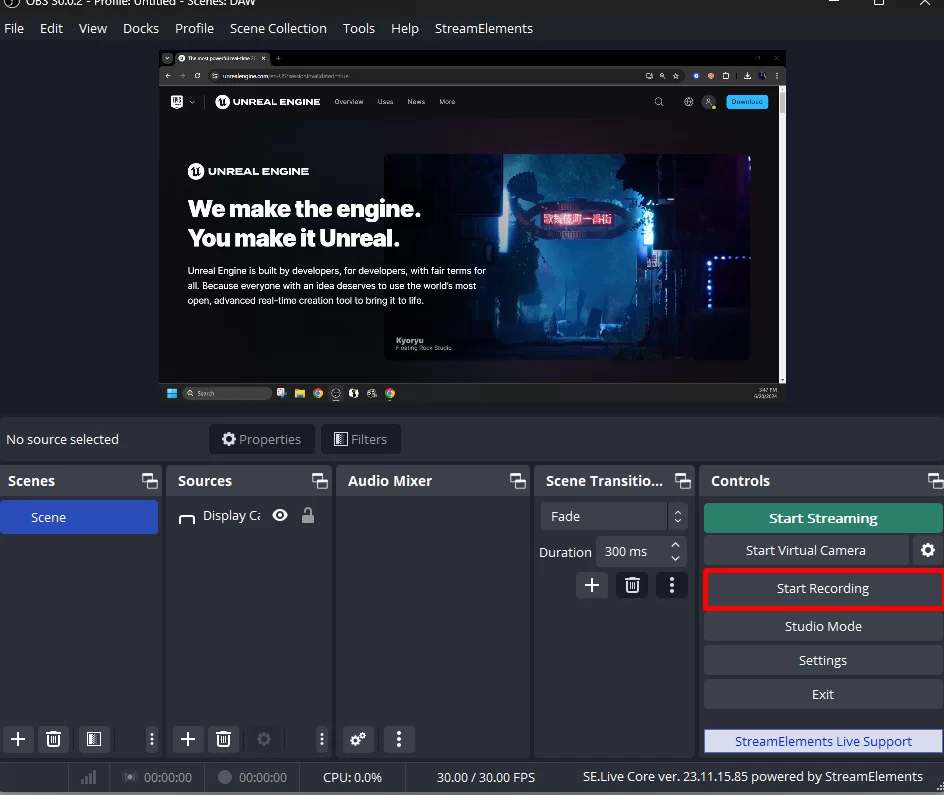
Now you should see your screen! Let's click on Record.
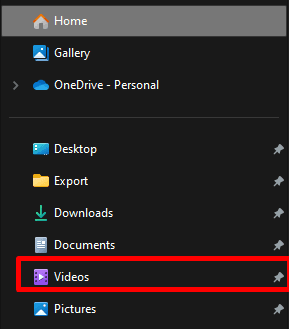
After you finish recording, you can find your video in the Videos folder on your computer.
That's the default location - you can change it in the OBS settings.